
When building prototypes in Axure, there are several interaction patterns that you end up using repeatedly. In real UX planning work, features like toggle switches, automatic page transitions, UI flow organization, and embedding external content appear surprisingly often.
In this article, I’ll walk through four practical Axure Prototyping Tips that are frequently used in real projects. None of them are particularly complex, but knowing these tricks can significantly speed up your prototyping workflow.
When working on prototypes, you eventually realize you’re fighting two persistent forces: Dynamic Panels and deadlines. Both are remarkably stubborn.
Axure Prototyping Tips_Creating a Toggle Switch (Axure toggle switch) 🔘
In app UI design, toggle switches are commonly used to represent ON/OFF states such as notifications, settings activation, or feature enable/disable controls. In Axure, this interaction can be implemented very easily using a Dynamic Panel.
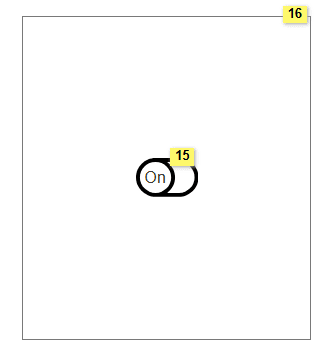
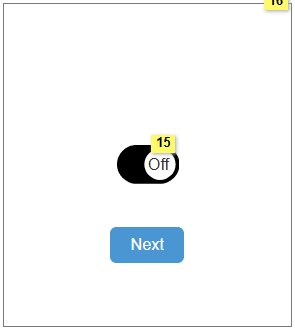
Basic Structure
- Design for the OFF state
- Design for the ON state
- Manage both states using a Dynamic Panel
Implementation Steps
- Design both the ON state and OFF state of the switch.
- Right-click the design that should appear by default and convert it into a Dynamic Panel.
- Create second states inside the Dynamic Panel and place the other design inside State 2.
- If ON is the default, your Dynamic Panel will look like this:
- State 1: ON design
- State 2: OFF design
Interaction Setup
- Event: Click or Tap
- Action: Set Panel State → Next
- Option: Enable Wrap from first to last
With this configuration, every click will move the panel to the next state, allowing the toggle switch to behave naturally.
Key Point: Using a Dynamic Panel allows you to create simple interactions without complicated conditional logic.
Toggle switches are simple components, but if you remember the first time you tried to build one in Axure… it probably felt strangely overwhelming.
Axure Prototyping Tips_Automatic Page Transition (Axure splash screen redirect) ⏱️
Many apps display a Splash Screen briefly before transitioning to the main interface. This type of automatic page movement can also be easily simulated in Axure.
Use Cases
- App launch screen
- Brand loading screen
- Automatic transition to the next page
Implementation Steps
- Create the page that should automatically transition.
- Add the following interaction.
Interaction Setup
- PageLoaded
- Wait 3000ms
- Open Link → Select the next page
With this setup, the page will automatically move to the next screen about three seconds after it loads.
Practical Tip: To make the experience feel closer to a real app, consider adding a logo animation or loading indicator.
Three seconds is short for a user, but for a planner staring at a prototype, it’s just long enough to think “Why isn’t this changing screens?” about three times.
Axure Prototyping Tips_Creating a UI Flow Page (Axure UI flow diagram) 🧭
Axure is not only a tool for building screens. It can also be used to visually organize UI Flow diagrams, which can be extremely useful for collaboration.
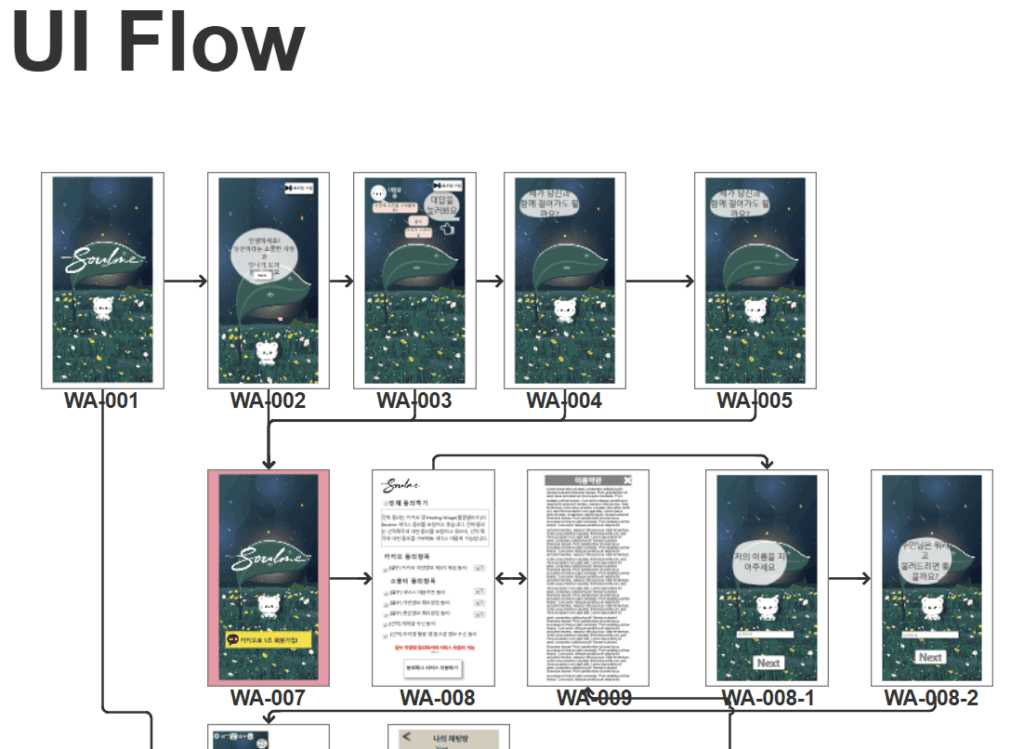
Organizing the Page Structure
To structure your project clearly:
- Add a folder in the Pages panel
- Place related pages inside the folder
Setting the Diagram Type
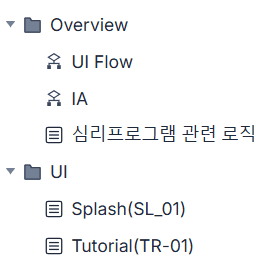
Select a page and change the setting to:
- Diagram Type → Flow
This will change the page icon into a Flow diagram style icon.
Creating the UI Flow
- Add a Snapshot widget.
- Click it and select an existing page from your prototype.
- The page will appear as a thumbnail.
- In the Style panel, set Scale to Fit to adjust the display size.
- Use the Connect Tool in the top-left corner to draw arrows between pages.
Adjusting Connector Arrows
- Right-click on the connector
- Select Edit Connector Points
This allows you to position arrow points exactly where you want them.
For example, you can even connect arrows directly to specific buttons on a screen.
Key Point: Organizing UI Flow visually makes collaboration with developers much easier.
As projects grow larger, there comes a moment when there are more arrows than screens. At that point, you briefly wonder whether you’re designing a system or a maze.
Axure Prototyping Tips_Embedding a YouTube Video (Axure embed YouTube) 🎬
Axure allows you to embed external content easily using the Inline Frame widget.
One common example is embedding a YouTube video inside your prototype.
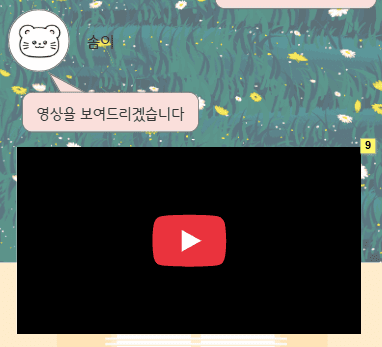
Basic Method
- Place an Inline Frame widget in Axure.
- Select the video on YouTube.
- Click Share → Embed.
- Copy the link that begins with iframe.
Axure Configuration
In the Inline Frame settings:
- Paste the copied link into External URL.
- Click f(x) next to the URL field.
- Remove everything except the embedded video URL (don’t include quotation marks).
Then adjust the following options:
- Style → Never Scroll
- Style → Hide Border
- Enable Preview option
This will display the video player cleanly inside the prototype.
Additional Tip: You can embed Google Maps using the same method.
Depending on the size of the Inline Frame, users can zoom or move the map within the prototype.
Adding even a single video to a prototype suddenly makes the project feel far more realistic. Small details often create surprisingly large effects.
Summary: Practical Axure Prototyping Tips
In this article, we explored four useful Axure Prototyping Tips:
- Toggle Switch interaction
- Splash Screen automatic page transition
- UI Flow diagram organization
- YouTube video embedding
These are not advanced features, but they are frequently used in real prototyping work.
By mastering basic components like Dynamic Panels, Page Load events, and Inline Frames, you can create prototypes that feel much closer to real applications.
The goal of a prototype is not to build a perfect product. It is to show what the experience might feel like. And sometimes, that alone is enough.
📚 Axure RP Prototype Series
This article is Part 2 of the series.
- Part 1: Popup Window & Basic Setup Strategy (https://lifetestlab.kr/axure-popup-dynamic-panel/)
- Part 2: Axure Star Rating Interaction (https://lifetestlab.kr/axure-star-rating-interaction/)
- Part 3: 4 Axure Prototyping Tips: Toggle Switch, Automatic page transition, UI Flow & YouTube Embed (Current Article)
* Axure RP Download : Axure RP Homepage
* I am not affiliated with Axure or related to the company in any way. This article was written purely based on personal experimentation and trial-and-error experience.